


How to Refresh Cache, Track Updates, and Ensure Forms Work Smoothly
A well-performing website or web application doesn’t just rely on great design—it needs regular maintenance to function efficiently. One essential task is cache management, which helps your website load faster and display the latest content. Alongside this, it’s important to check updates and ensure that all forms work properly.
In this guide, we’ll cover step-by-step instructions for refreshing cache, reporting before vs after, checking for updates, and verifying that forms are functioning correctly. Following these steps will keep your website smooth, reliable, and user-friendly.
1. Why Refreshing Cache is Crucial
Cache stores temporary website data to help pages load faster. While it improves performance, outdated cache can lead to:
- Users seeing old content
- Slow-loading pages
- Forms or interactive features not working correctly
Refreshing cache clears old data, allowing your website to display the latest updates and ensuring that all features, including forms, function properly.
2. Step-by-Step Guide to Refresh Cache
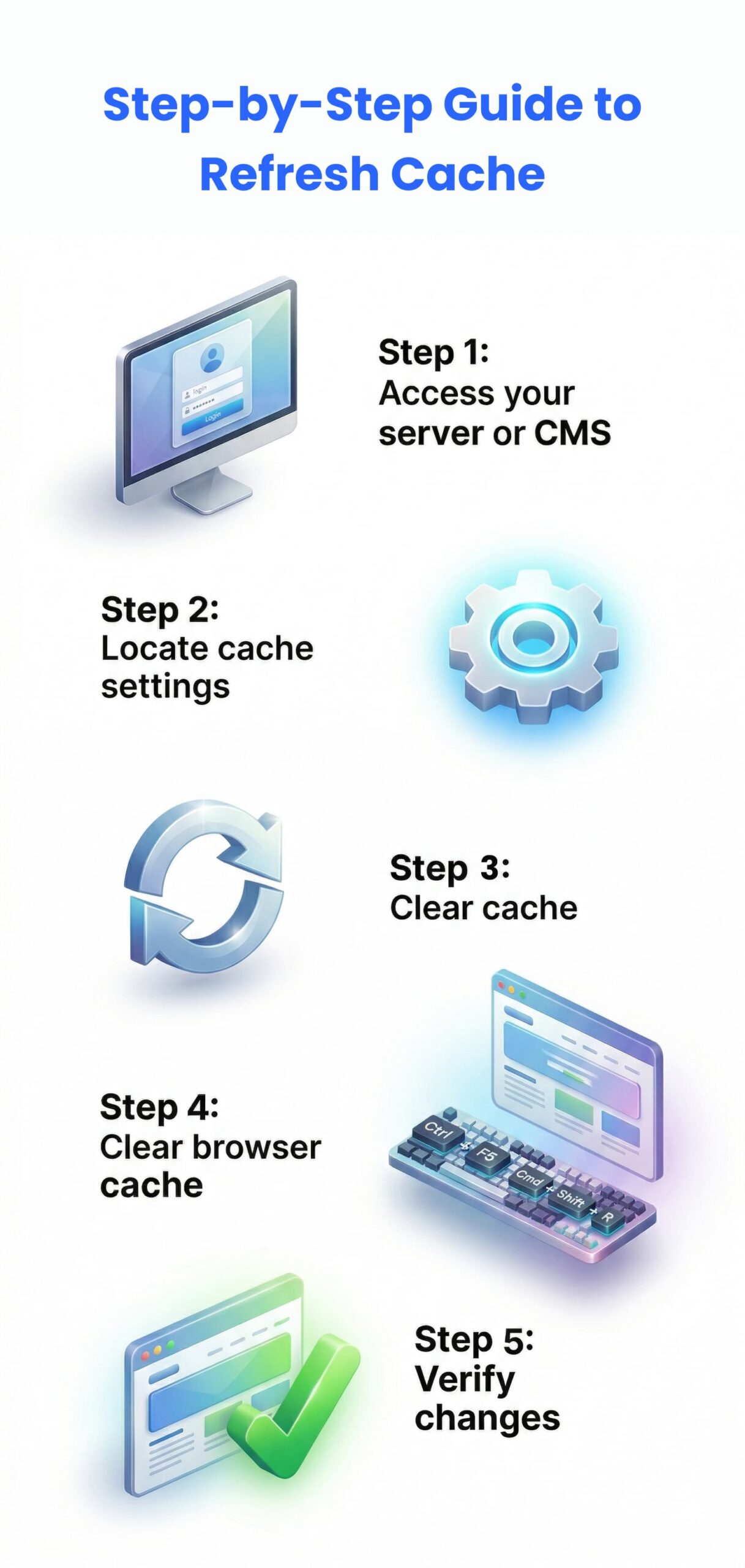
Step 1: Access your server or CMS
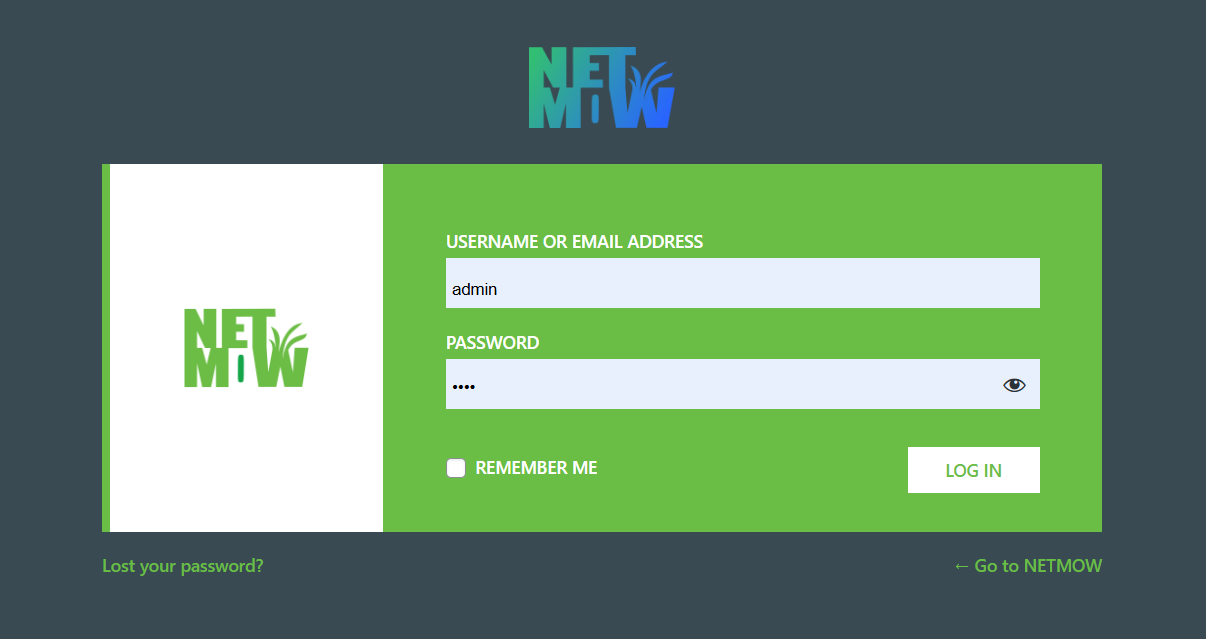
Log in to your content management system (CMS) such as WordPress, Joomla, or your custom platform.
Step 2: Locate cache settings
Most platforms have cache settings under menus like “Performance,” “Settings,” or “Tools.”
Step 3: Clear cache
- Click on “Clear Cache” or “Purge All”
- Some systems allow selective cache clearing for specific pages
Step 4: Clear browser cache
- For Windows: Ctrl + F5
- For Mac: Cmd + Shift + R
Step 5: Verify changes
Reload your website and check that the latest content is displayed correctly.
3. Reporting: Before vs After
To understand the impact of cache refresh:
Before:
- Take screenshots of your pages
- Generate reports on page speed and functionality
- Note any issues in forms or interactive elements
After:
- Repeat the same checks post-cache refresh
- Compare results to see improvements in speed, display, and functionality
Documenting before and after results helps identify recurring issues and ensures updates are effective.
4. Checking for Updates
Keeping your website components up-to-date is vital for security and performance.
- CMS updates: Ensure your content management system is on the latest version
- Plugins & Themes: Regularly update all extensions and themes
- Custom scripts: Verify any custom code changes are implemented correctly
- Automatic notifications: Enable alerts for future updates
5. Ensuring Forms Work Properly
Forms are critical for user interaction, lead generation, and data collection. After cache refresh and updates:
- Test form submissions: Ensure users can submit data without errors
- Field validation: Check that required fields, email addresses, and phone numbers are correctly validated
- Confirmation messages: Verify success or error messages appear properly
- Integration: Make sure forms connected to CRM or email systems are receiving data correctly
6. Best Practices for Cache & Updates
- Schedule cache refresh regularly (weekly or monthly, depending on website size)
- Maintain a log of before vs after reports for accountability
- Backup your website before major updates
- Test all forms and interactive features on multiple devices and browsers
Conclusion
Regular cache refreshes, software updates, and form verification are essential for a fast, reliable, and user-friendly website. By following these steps, you can ensure your website stays up-to-date, performs efficiently, and delivers a seamless experience to your users.